Menu
RivalPair orange and green mascotsRivalPairBy aaliSoft

YOUR MAC. YOUR ANDROID. TOGETHER.

Two devices.
One smoother day.

Your phone and your Mac should feel like they belong together. Move files, share your clipboard and bring your Android’s screen and camera to your desktop.

Mac + Android · No aaliSoft account

RivalPair for Mac
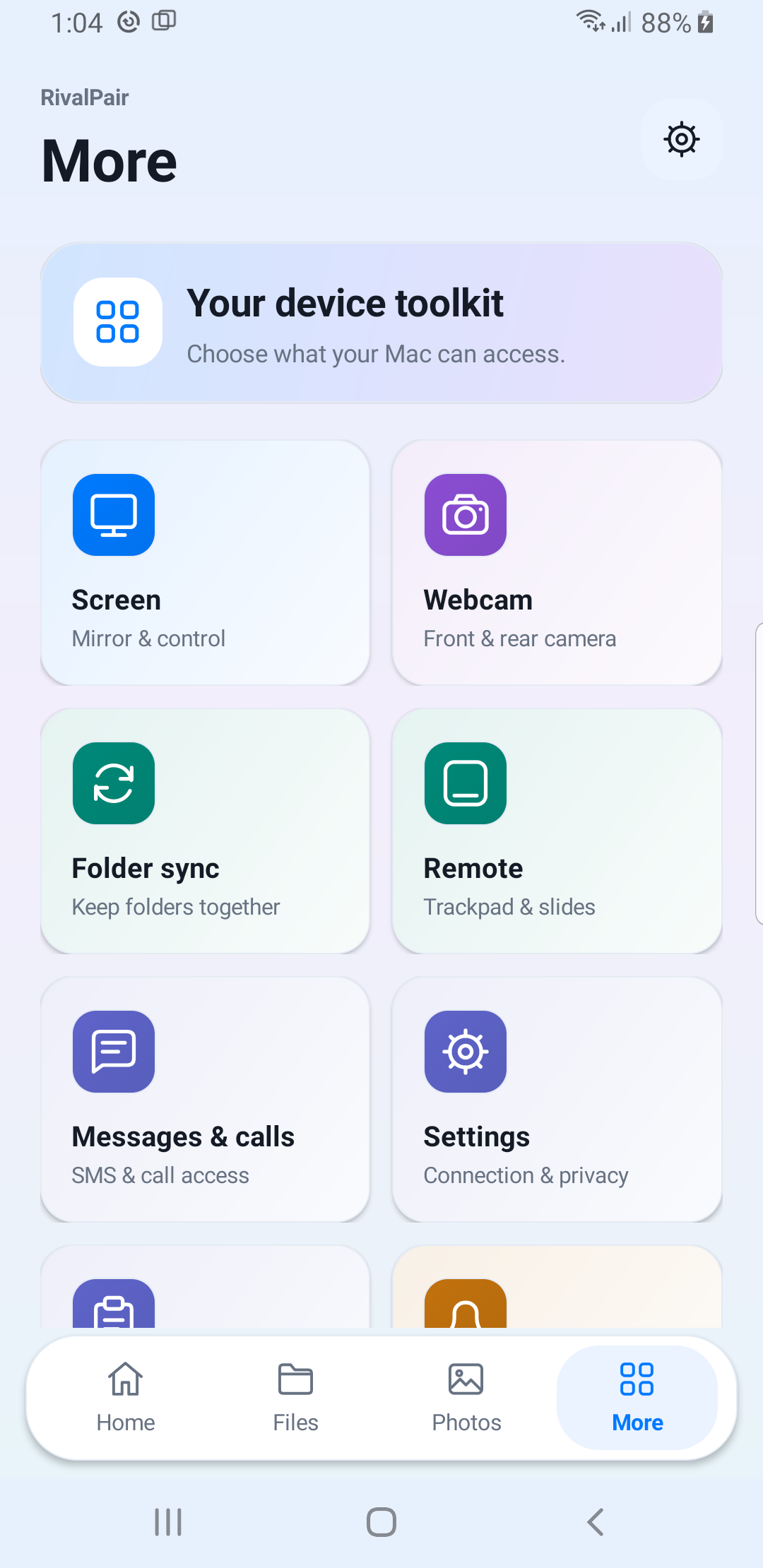
Actual RivalPair Mac dashboard with navigation and connection toolsActual RivalPair Android companion home screenA companion made for Android

Wi-Fi or USBChoose how you connect

Direct, local connectionsYour files travel between your devices

Permissions you controlEnable only what you need

START WITH WHAT YOU NEED

Just a file transfer.
Or a whole new workflow.

Keep things simple with a cable, or pair both apps to bring your everyday tools together.

PLUG IN. COPY. DONE.

Files over USB

Connect a compatible Android phone, unlock it and select File Transfer. Browse storage in the Mac app and drag files or entire folders in either direction.

  • No Android companion app required for USB MTP
  • No USB debugging required
  • Progress, cancel, retry and duplicate-name handling
  • Folders, thumbnails, Quick Look and Finder-style actions
PAIR ONCE. DO MORE.

Your devices over Wi-Fi

Open RivalPair on both devices, join the same local network and pair by QR code. Then choose the features that fit the way you work.

  • Wireless file and folder transfers
  • Clipboard and notification sharing
  • Screen mirroring, control and phone camera
  • Folder sync, photo backup and remote controls

SEE THE REAL APPS

Familiar on the Mac.
Thoughtful on the phone.

Clear controls, focused pages and light or dark appearance that follows your system. Tap any screenshot for a closer look.

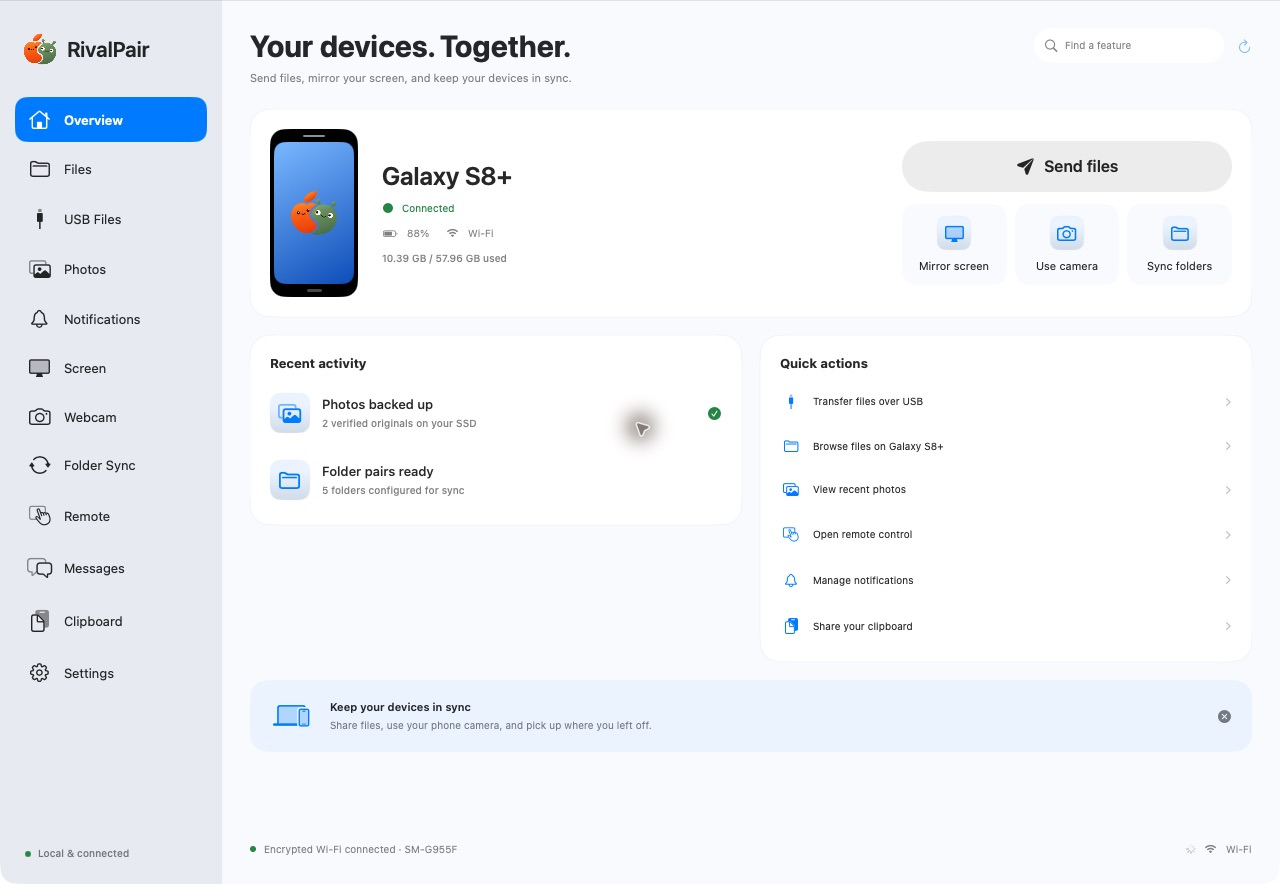
RivalPair Mac overview with its device dashboard and feature sidebar
Mac dashboardLive connection to the Galaxy S8+, captured on Mac.
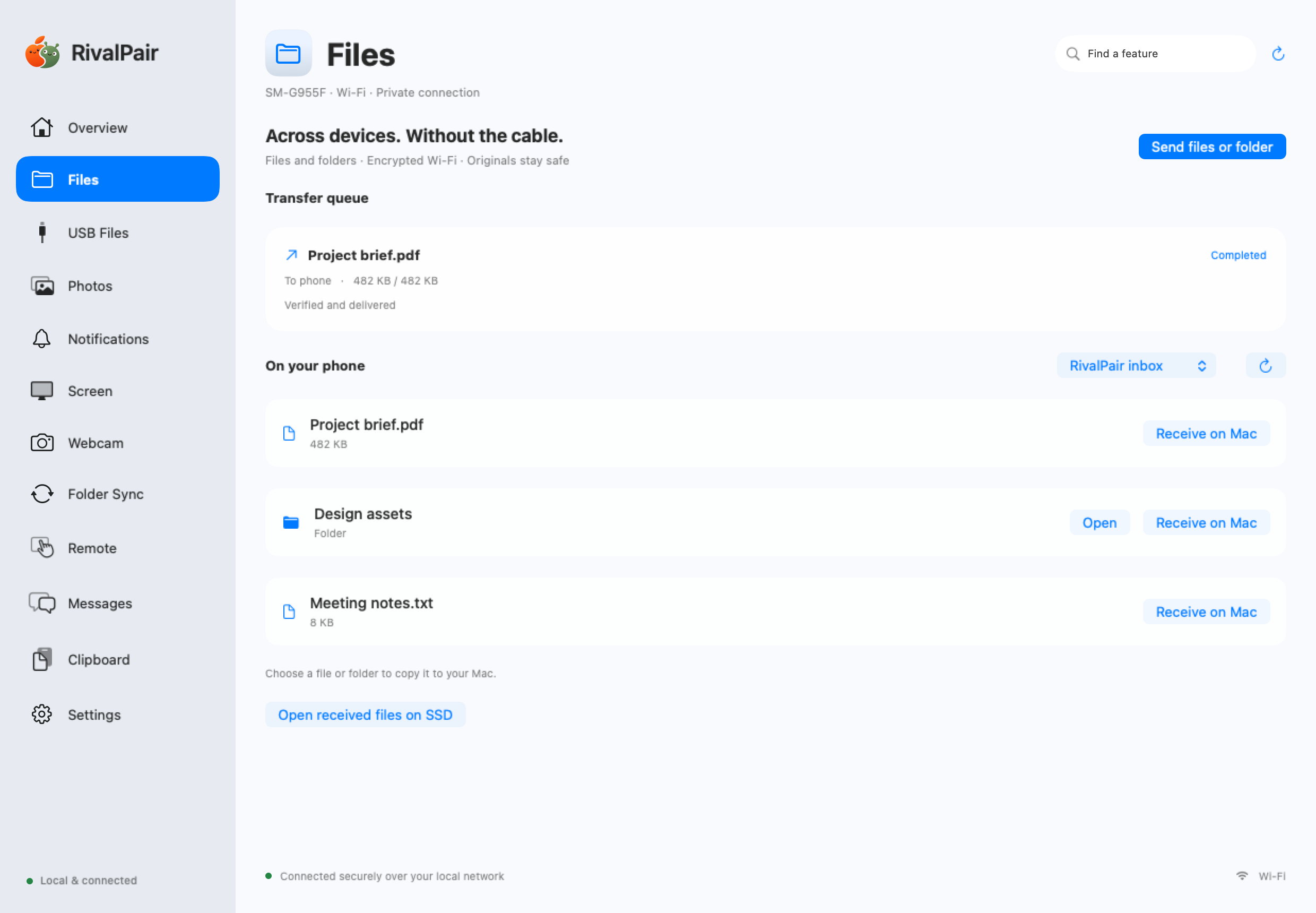
RivalPair Mac file transfer interface
Files, without the fussActual Mac interface with sample files and transfer data.
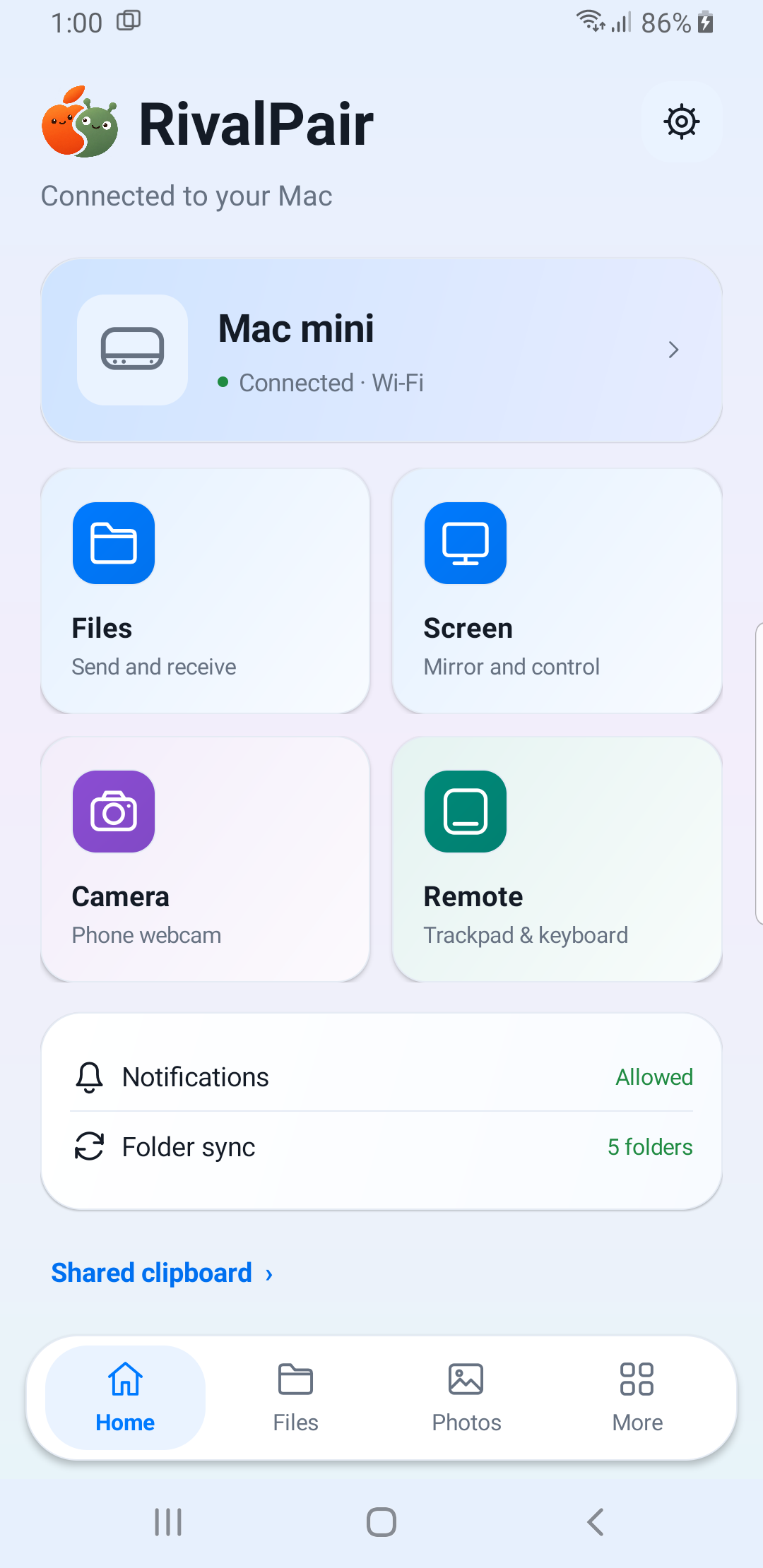
RivalPair Android home captured on a Samsung Galaxy S8+
The Android companionCaptured on Samsung Galaxy S8+.

ON YOUR ANDROID

Everything has
its own place.

Check your connection, open files or jump into screen sharing, camera and remote controls. The companion keeps the tools you need close at hand.

  • Connection at a glanceSee when your Mac and phone are connected.
  • Quick access to everyday toolsFiles, screen, camera and remote controls from Home.
  • Sharing stays in your controlChoose permissions and manage sessions on the phone.
See the Android toolkit

Dashboard and Android screenshots captured from the running apps. The file-transfer example uses sample files. Layouts and available controls may vary.

LESS DEVICE-HOPPING

Bring the useful parts
of your phone to your desk.

01 / FILES

Files and whole folders

Transfer wirelessly or over USB. Keep nested folders intact, follow progress and retry interrupted jobs without silently replacing duplicate filenames.

02 / CLIPBOARD

Copy here. Continue there.

Share text between your devices. Automatic sharing is optional; sensitive-marked clipboard formats are skipped. Android may limit background access.

03 / NOTIFICATIONS

Stay in the loop

View phone notifications on your Mac, filter apps and pause sharing. Reply or dismiss where the original Android notification supports it.

04 / SCREEN

A bigger view of Android

Mirror your phone over Wi-Fi. Add taps, typing and navigation after enabling Android’s separate screen-control permission.

05 / CAMERA & AUDIO

A new role for your phone

Stream the front or rear camera and microphone to your Mac. Use compatible virtual-camera and audio drivers for input in other apps.

06 / SYNC & BACKUP

Keep the important things close

Browse photos and videos, back up originals and sync chosen folders. Conflicting versions are preserved; deletion mirroring is an explicit option.

07 / REMOTE

Make your phone a remote

Use a trackpad, keyboard and presentation controls from Android. Mac system input requires its own permission and an active remote session.

08 / MESSAGES & CALLS

Keep an eye on your phone

Read SMS and see call alerts after granting access. Sending and supported call actions depend on your permissions, Android version and mobile service.

YOUR DEVICES. YOUR CHOICE.

You decide
what gets shared.

Start with files. Add notifications, camera, microphone or screen control only when you want them. Stop a session or change permissions from your device settings.

Read the privacy policy
Files & photosAccess chosen folders or your gallery for transfers and backups.
Notifications & messagesSeparate access for the information you want on your Mac.
Camera, microphone & screenSession controls and Android’s visible sharing indicators.
Keyboard & mouse controlAndroid Accessibility and macOS input permissions are separate.

A SIMPLE START

Make the introduction.
Then make it your own.

  1. 1

    Open both apps

    Install RivalPair on your Mac and the companion on Android. For USB-only file transfers, start with the Mac app.

  2. 2

    Join the same network

    Connect both devices to the same local Wi-Fi network. Your Mac can also use Ethernet on that network.

  3. 3

    Pair with a QR code

    On Mac, choose Settings → Pair phone. On Android, open Connection → Pair a Mac, scan the code and approve.

  4. 4

    Choose your features

    Enable the permissions you want. Extra features are optional; your connection doesn’t need every permission.

Prefer a cable? Select File Transfer on your unlocked Android phone, then open USB Files on the Mac. No companion install or developer setup is needed for MTP file transfers.

GOOD TO KNOW

A few answers
before you pair.

Which devices does RivalPair support?

The current Mac preview is for Apple silicon running macOS 13 or later. The Android companion targets Android 8.0 and newer. USB file transfers require an Android device that exposes storage using MTP. Availability can vary by manufacturer and device.

Do I need the Android app just to copy files over USB?

No. Compatible USB MTP file transfers work through the Mac app without the Android companion or USB debugging. Unlock the phone, use a data-capable cable and select File Transfer when Android asks.

Does Wi-Fi sharing work from different locations?

This version connects devices on the same local network. Remote connections between different locations are not included. Guest Wi-Fi or networks that isolate devices can prevent discovery.

Will it copy or delete my files automatically?

Automatic backup and background sync are optional. Folder sync preserves conflicting versions, and deletion mirroring is opt-in. Keep a separate backup of important files; selected folders and app-managed storage have different uninstall behaviour.

Can I use the phone camera in video-call apps?

RivalPair streams the phone camera over Wi-Fi. Sending that picture into another Mac app requires a compatible virtual-camera driver. The current integration can reuse an installed OBS Virtual Camera driver without keeping the OBS application open. Microphone routing similarly uses a compatible audio device.

Do SMS, calls and RCS work the same on every phone?

No. These depend on Android, your device, granted permissions and carrier. RivalPair supports SMS and call alerts, with supported actions where available. MMS/RCS composition uses your phone’s messaging app; native RCS and direct cellular call-audio routing are not provided by this preview.

Is RivalPair free?

RivalPair is free to use.

RivalPair app icon

RIVALPAIR BY AALISOFT

A better connection
starts here.

Explore the tools that bring your Mac and Android together.

Explore the features